Introduction
HubSpot Workflows are a feature that automates various business processes in marketing, sales, customer service, and more, based on pre-set rules. This allows staff to reduce the time spent preparing for customer interactions and focus on more critical tasks. Specifically, it enables the streamlining of marketing and sales activities and the automation of continuous follow-ups with prospective customers.
For example, you can execute actions such as automatically adding contacts who submit a specific form to a list, sending automated marketing emails, assigning registered contacts to specific representatives, or updating company information related to a contact. For professionals facing labor shortages or challenges in operational efficiency, HubSpot Workflows will be a reliable tool.
In this article, we will explain effective ways to utilize HubSpot Workflows and provide a detailed guide on how to create them. When setting up workflows, aim for a smooth build process by utilizing the templates and AI features provided by HubSpot to gain ideas.
Here, we will explain the overview of the HubSpot Workflow feature, the pricing plans available, and access permissions in detail.
Overview and Purpose of the Workflow Function
The HubSpot Workflow feature is a powerful tool that automates various business processes, including emails, based on pre-defined conditions. The main purpose of this function is to streamline the time it takes to approach customers and improve the overall productivity of the company. Specifically, it significantly reduces the resources spent on diverse tasks—especially repetitive ones—that occur daily in departments such as marketing, sales, and customer success.
In HubSpot Workflows, the system responds automatically when a user meets specific conditions, such as "Requesting Materials" or "Inquiries." This makes it possible, for example, to automatically send notifications to administrators or representatives, send personalized emails tailored to specific segments, or automatically update lead scoring. You can also perform automatic updates of related records, such as company information associated with a contact. Thus, HubSpot Workflows support the overall efficiency of operations by automating various business processes and reducing human error.
Available Pricing Plans and Access Permissions
The HubSpot Workflow feature is available in the "Professional" and "Enterprise" plans of specific HubSpot products. The eligible products are as follows:
- Marketing Hub
- Sales Hub
- Service Hub
- Operations Hub
With these plans, you can utilize advanced automation features to maximize the efficiency of business processes. For example, the Marketing Hub Professional plan is available starting from 96,000 JPY per month. Please note that the Workflow feature is not available in HubSpot's Free or Starter plans.
Appropriate access permissions are required to create and publish workflows. Specifically, to create a workflow, you need "Workflow Edit" or "Workflow Publish" permissions in HubSpot. Furthermore, to actually publish the created workflow and start its operation, the user must have "Workflow Publish" permissions. Depending on the account plan, there may be a limit on the number of workflows you can create, so when managing multiple workflows, it is important to check your plan details and manage them appropriately.
Differences Between HubSpot Workflows and Sequences
HubSpot offers both Workflows and Sequences as features to realize automation. While both contribute to operational efficiency, clear differences exist in their purpose, scope of application, and usage methods. Here, we will delve into the characteristics of each and explain the differences in detail.
What is a Sequence?
The HubSpot Sequence feature is designed specifically to automate communication with customers and streamline sales activities. Its main purpose is to optimize "1-to-1" communication—individual correspondence between a customer and a representative.
For example, you can automatically send personalized follow-up emails to prospects who meet specific conditions among event participants, or send emails encouraging information sharing or meeting setups to customers with declining engagement. Furthermore, if a prospect has already booked a meeting, the system can automatically stop sending subsequent appointment request emails, allowing for flexible responses tailored to the situation. Like workflows, sequences contribute to operational efficiency, but their focus is specialized in individual sales approaches, aiming to maximize business opportunities with minimal resources.
Differences Between Workflows and Sequences
While HubSpot Workflows and Sequences share the common goal of automation, they differ in many aspects, including the scope of work covered, the nature of communication, and operational methods.
- Workflows aim to streamline entire business processes through broad "1-to-many" automation.
- Sequences specialize in improving sales efficiency by automating personalized "1-to-1" approaches.
Broadly speaking, Sequences can be understood as focusing on the "automation of individual sales activities," while Workflows support the automation of a wide variety of other business processes. Detailed information on HubSpot Sequences is also explained in related articles and videos, so we recommend referring to those for a deeper understanding.

What You Can Do with HubSpot Workflows: Main Use Cases
Due to their high flexibility and rich functionality, HubSpot Workflows demonstrate significant effects in various areas of business. Here, we focus on major use cases to introduce what is specifically achievable by utilizing workflows.
Efficient Lead Nurturing via Email Automation
HubSpot Workflows automate email marketing, enabling effective approaches to potential customers (leads). By creating emails with an easy-to-use editor and setting appropriate triggers, conditions, and actions, you can automatically deliver emails optimized for lead behavior and attributes.
For example, by building a workflow that automatically sends step-emails introducing different success stories every few days to a prospect who downloaded specific materials, you can gradually increase the lead's interest and realize effective lead nurturing that connects to business negotiations. Furthermore, since conversion rates from sent emails can be tracked in coordination with HubSpot CRM, you can continuously analyze email effectiveness and improve it by running PDCA cycles. By utilizing HubSpot's powerful CRM features, email automation via workflows delivers value throughout the entire marketing process, contributing to improved customer experience and business growth.
Visualization, Personalization, and Customization of Workflows
By utilizing HubSpot Workflows, you can build targeted workflows to maximize the effectiveness of your approach to leads. The intuitive editor allows you to easily set up everything from simple follow-ups after email transmission to complex scenarios without specialized knowledge.
Based on abundant data accumulated in the CRM and database, it is possible to automatically send optimal emails or generate specific tasks according to the lead's situation and past behavior history. Since the entire workflow is displayed visually, even complex scenarios are easy to grasp, making design, adjustment, and monitoring simple. For example, you can personalize measures along the lead's customer journey, such as sending special content to leads who viewed a specific website page multiple times, or sending an invitation for an individual consultation to leads who submitted a specific form. A major benefit of HubSpot Workflows is that customized measures tailored to individual leads can be executed with minimal effort.
Additionally, using an external app called "Custom Workflow," it is possible to distribute recommendations for material requests, seminars, and products. This is an application that realizes recommendation functions that are difficult with standard features.
Flexible Automation of Tasks Beyond Email
HubSpot Workflows can flexibly automate not just email sending, but various business tasks. The scope of utilization is wide, contributing to operational efficiency in various departments of a company. Specifically, the following tasks can be automated:
- External Tool Integration Settings: Use Webhooks to integrate with various applications other than HubSpot to automate the sending, receiving, and processing of information. This smooths integration with existing tools and improves operational efficiency.
- Lead Scoring: Automatically assign scores based on prospect behavior history and profile information to evaluate lead priority. This allows sales teams to focus on more promising leads.
- Handoff of High-Probability Leads: Settings are possible to automatically assign leads to sales representatives when their lead score exceeds a certain standard or their probability increases. This supports rapid response without missing hot leads.
- Updating Properties and Values: Values of properties linked to CRM records such as contacts, companies, and deals can be automatically updated based on specific conditions. For example, you can operate so that the lifecycle stage of a user who submitted a specific form is updated to "MQL."
- Notifications to Team Members: When a specific event occurs or a lead meets specific conditions, email or in-app notifications can be automatically sent to relevant team members (e.g., sales reps, customer success reps).
- Automatic Creation of Follow-up Tasks: If a contact does not respond for a certain period or after downloading specific materials, a follow-up task is automatically created in the representative's CRM. This prevents missing follow-ups with important customers.
As described above, HubSpot Workflows are highly flexible and can be utilized not just as a simple email sending tool, but as a powerful platform that supports the automation of entire business processes. This high flexibility is a major attraction of HubSpot Workflows.
HubSpot Workflow Usage Examples
HubSpot Workflows help solve specific challenges in various business scenes. In this chapter, we introduce three specific examples of what can be done using HubSpot Workflows.
Automatic Delivery of Thank You Emails
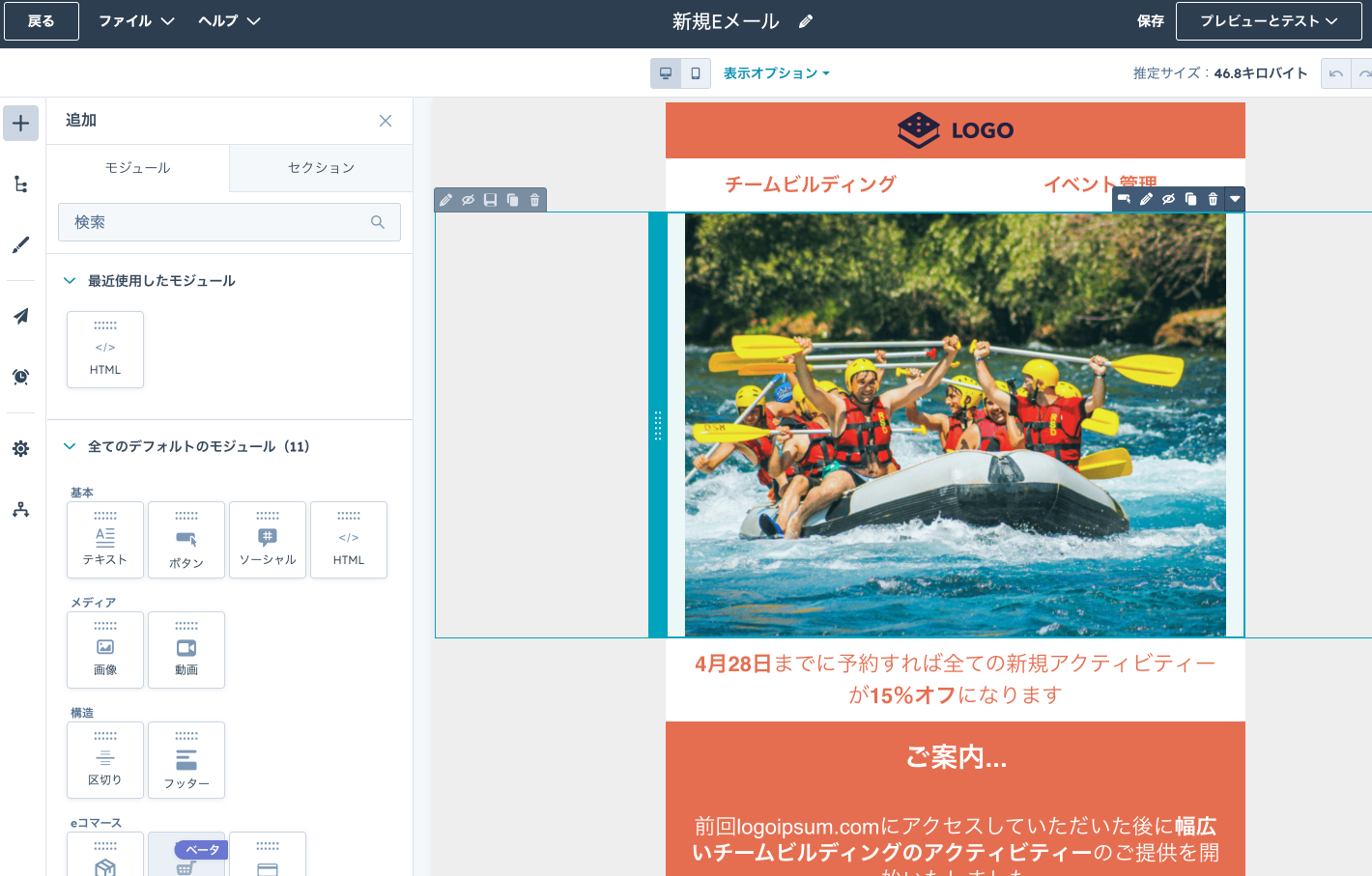
It is possible to automatically send a thank you email to a prospect who downloaded materials from the website by setting specific conditions (triggers). For example, to a person who submitted a material request form, information related to the downloaded material can be automatically delivered via email along with a message of gratitude. In this case, since the data entered in the form is automatically recorded in HubSpot CRM, once the workflow is built, the effort required for subsequent information management and sales preparation can be significantly reduced. While simple, this is an effective use case that contributes to improving customer experience and operational efficiency.
Follow-up Emails to Event Non-Attendees
You can identify prospects who have not applied after a certain period since sending an event invitation email and automatically send follow-up emails. This utilizes the "Branching" (if/then) function of the workflow. Specifically, set a condition asking, "Did they fill out the event registration form?" For prospects who do not meet this condition (i.e., have not applied), re-send the event invitation email automatically. Depending on the period until the event date, distribute emails at an appropriate frequency to encourage participation. The branching function allows messages to be automatically differentiated according to customer behavior, offering the major advantage of efficiently implementing personalized approaches tailored to the target.
Guide to Optimizing Site Re-visit Notifications Using HubSpot:https://www.tech-father.com/ja-jp/blog/hubspot-site-view-notice
Effective Follow-up for Event Participants
Follow-up for event participants is also a strength of HubSpot Workflows. By setting event registration or participation as a trigger, you can automatically send additional event-related content, information on related seminars, or information on your company's paid services, encouraging actions that lead to concrete results. For example, after a seminar ends, provide an opportunity to naturally introduce another service of your company to further heighten the participant's interest and sustain their engagement. By automating this process, effective marketing activities can be continued without causing discomfort to the customer, contributing to the construction of long-term customer relationships and the creation of business opportunities.
HubSpot can manage webinars for marketing events. Through integration with Zoom Events, you can manage everything from creation to attraction and seminar participation status.The following workflow action makes these marketing events more efficient:https://www.tech-father.com/product-lites-jp/hubspot-custom-workflow-marketing-event-search-action
HubSpot Workflow Creation Steps: Detailed Guide
HubSpot Workflows do not require complex settings and allow for the construction of various automation processes through intuitive operations. Here, as a general example, we will explain the steps to create a workflow where "If an inquiry form is submitted, set the contact's lifecycle stage to MQL (Marketing Qualified Lead) and notify the representative." Through this example, learn the flow of basic settings and master the basics of workflow creation tailored to your company's needs.
Step 1: Launching a New Workflow and Selecting Objects
In the initial stage of building a workflow in HubSpot, you launch a new workflow and choose the object that will be the subject of automation. Objects represent important elements in business such as Contacts, Companies, Tickets, and Deals, and each object has "properties" linked to it showing detailed information. HubSpot offers multiple methods, such as creating a workflow from scratch, generating one via AI, or basing it on existing templates. Depending on the account type, there may be limits on the number of workflows you can create, so select the optimal method and start creating your workflow.
Building a Workflow from ScratchWhen building a completely original workflow, proceed with the following steps (selecting "From Scratch" in the dashboard).
Workflow Generation Using AIUsing HubSpot's AI features allows you to create workflows more efficiently. This feature allows for the rapid generation of basic workflow structures, including enrollment triggers and actions.
Creating Workflows Using TemplatesBy utilizing workflow templates that match your objectives, you can start the automation process more quickly and rationally. HubSpot offers a wide variety of templates corresponding to diverse usage scenes.
Step 2: Setting Enrollment Triggers
Once the initial workflow setup is complete, proceed to set the "Enrollment Triggers." An enrollment trigger is a condition definition for automatically enrolling records such as contacts, companies, or deals into the workflow. With this setting, the system recognizes "when specific conditions are met, start the workflow." If enrollment triggers are not set, records must be manually enrolled in the workflow.
Specific setting steps are as follows:
- Click "Set up triggers" on the workflow settings screen.
- Select one of the following trigger types from the left panel:
- When an event occurs: Starts the workflow when a specific event occurs, such as a website visitor submitting a form or viewing a specific page.
- When filter criteria is met: Starts the workflow when a prospect's company location, job title, property values, etc., match pre-set filter conditions.
- Schedule based: Starts the workflow based on a specific schedule, such as sending an email at a fixed time every week.
- If you selected "When an event occurs" or "When filter criteria is met," set the specific event or filter conditions and click "Done."
- Confirm that the set trigger is reflected in the workflow and click "Save."
- If you selected "Schedule based," set the date and time on the left side of the screen and click "Save."
Re-enrollment Settings:By default, records are enrolled in the workflow only the first time they meet the enrollment trigger. However, if you want records to re-enroll in the workflow multiple times based on specific conditions, you need to enable the "Re-enrollment" function.
- Click the "Re-enrollment" tab on the trigger edit screen.
- Click the "Re-enrollment" switch to turn it ON.
- Click "Save" to complete the re-enrollment settings.This allows for flexible operations, such as starting the workflow every time the same contact submits a form multiple times. Methods to manually enroll records without automatic registration are also available.
Step 3: Adding Actions and Detailed Settings
The chain of tasks that the workflow automatically executes after the trigger is fired is called an "Action." HubSpot offers various actions, which can be manually selected and added, as well as duplicated or moved as needed. This realizes efficient workflow construction. You can also add notes to actions. Note that available actions vary by contract plan, and using "locked" actions may require an account upgrade.
Steps to add actions to a workflow are as follows:
- Click the "Plus icon (+)" on the workflow creation screen to add an action.
- Select the job you want to execute from the displayed list. Clicking a job displays detailed information allowing you to proceed with settings.
Major configurable actions are as follows:
- Communication: Send email, Send WhatsApp message, Send in-app notification, Unenroll from sequence, Enroll in sequence, Send internal email notification, Send internal marketing email.
- CRM: Manage email subscription status, Create Salesforce Task, Set Salesforce Campaign, Delete contact, Create task, Clear property value, Copy property value, Set property value, Increase/Decrease property value, Create record, Rotate record to owner, Copy company property value.
- Marketing: Set marketing contact status, Remove from ad audience, Add to ad audience, Remove from static list, Add to static list.
- Data Processing: Send Webhook, Custom code (execute code to write unique logic and integrate with external apps), Format data (apply formatting rules to properties to keep data consistent).
After setting the action details, click "Save." Integrating your HubSpot account with external tools can further expand the possibilities of your workflow.
Step 4: Setting Workflow Re-enrollment and Unenrollment
In workflow operation, appropriately setting the conditions under which records are re-enrolled or automatically unenrolled from the workflow is essential for maximizing automation effects and optimizing customer experience.
Workflow Re-enrollment Settings:Default implies single enrollment. However, for a workflow triggered by "Material Download," you might want to trigger a follow-up workflow again if the same contact downloads a different material later. In such cases, enabling the "Re-enrollment" option allows records to enroll multiple times under specific conditions.
Workflow Unenrollment (Suppression) Settings:It is important to set automatic unenrollment when a record achieves the workflow's goal or takes specific actions.
- When workflow ends: Automatically removed when all set actions are completed.
- When a separate specific action is executed: Removed if the contact submits a specific form, purchases a product, or books a meeting (Goal setting).
- Connection to other workflows: You can set it so that when a contact is enrolled in the target workflow, they are unenrolled from other workflows. This prevents excessive approaches.
- Unenroll from Sequence: You can remove a contact from a sales sequence via a workflow action.
Step 5: Managing and Optimizing Workflow Settings
To operate workflows efficiently, managing various setting options is crucial.
- Timing Settings: In the "Settings" tab, you can specify specific days and times for actions to execute (e.g., Business days only).
- Notification Settings (Enterprise Plan only): Set alerts to be sent to representatives if issues occur in operation or if enrollment rates fluctuate significantly.
- Connection Settings: Unenroll contacts from other specific workflows when they enter the current one.
- Workflow Mini-map: Use the mini-map displayed on the screen to quickly grasp the overall picture of complex workflows.
- Undo and Redo Changes: You can undo or redo changes made in the last 30 days.
Step 6: Reviewing and Activating the Workflow
Once all settings are complete, perform a final check before activation.
- Click the "Review and publish" button at the top right of the screen.
- Check all settings (Triggers, Actions, Settings) on the review page. Note: The "Existing contacts" count is an estimate.
- If there are no issues, select "Next."
- Confirm again on the final screen and click "Turn on."
- If "Workflow is on" is displayed, the setup is complete.
Notes and Best Practices for Setting Up HubSpot Workflows
While powerful, effective use requires understanding some caveats.
Managing Limits and Considering Plans
There is a limit to the number of workflows depending on your plan (e.g., 300 for the Professional plan). Periodically check usage and delete old workflows. If limits are reached, consider upgrading or purchasing limit increases.
Regular Maintenance and Error Prevention
Complex environments can lead to errors or conflicts (e.g., conflicting instructions from different workflows).
- Check execution history for errors.
- Review workflows when business processes change.
- Delete or merge conflicting/duplicate workflows.
Keep Designs Simple
Avoid overly complex workflows. They are hard to grasp and prone to errors upon modification. "One goal per workflow" is a good rule of thumb. Combine multiple simple workflows rather than building one massive one.
Clear Naming Conventions and Descriptions
Always include a clear "Name" and "Description."
- Example: "ThankYouMail_MaterialA_Download"
- In the description, include the function, target segment, main actions, owner, and last update date. This ensures knowledge sharing across the team.
Summary: Mastering HubSpot Workflows
HubSpot Workflows might seem difficult at first, but as introduced, the settings and usage are not complicated. It is a convenient tool that can easily automate various business processes.
What we introduced here covers only the basics. HubSpot offers many more complex features suited to business goals, such as advanced scenario design using Branching (if/then branches) and Custom Code for external integration. For complex needs, consider consulting HubSpot certified partners.
By effectively using workflows, you can be liberated from manual routine tasks and focus on high-value work, realizing advanced marketing measures and improved customer experiences.
FAQ
What is a HubSpot Workflow?It is a tool that automates processes in marketing, sales, and service based on pre-set rules (e.g., sending emails, updating data) to improve efficiency.
Which HubSpot plans include Workflows?They are available in the "Professional" and "Enterprise" plans of Marketing, Sales, Service, and Operations Hubs. Not available in Free or Starter plans.
What is the difference between Workflows and Sequences?
- Workflows: "1-to-many" automation for overall process efficiency (Marketing/Ops focus).
- Sequences: "1-to-1" automation for personalized sales communication. Stops automatically upon reply/meeting booking.
What tasks can be automated?Email sending, Webhook integration, Lead Scoring, Lead Assignment, Property Updates, Internal Notifications, Task Creation, Ad Audience management, Salesforce integration, and more.
Points to note when building?Watch out for plan limits (300 limit on Pro). Perform regular maintenance. Keep designs simple. Use clear naming conventions for team understanding. Verify settings thoroughly before publishing.